You can take your data out of the app as a spreadsheet from several places. Pick the one that matches the question you are answering.

Which export to use

Data export in Settings
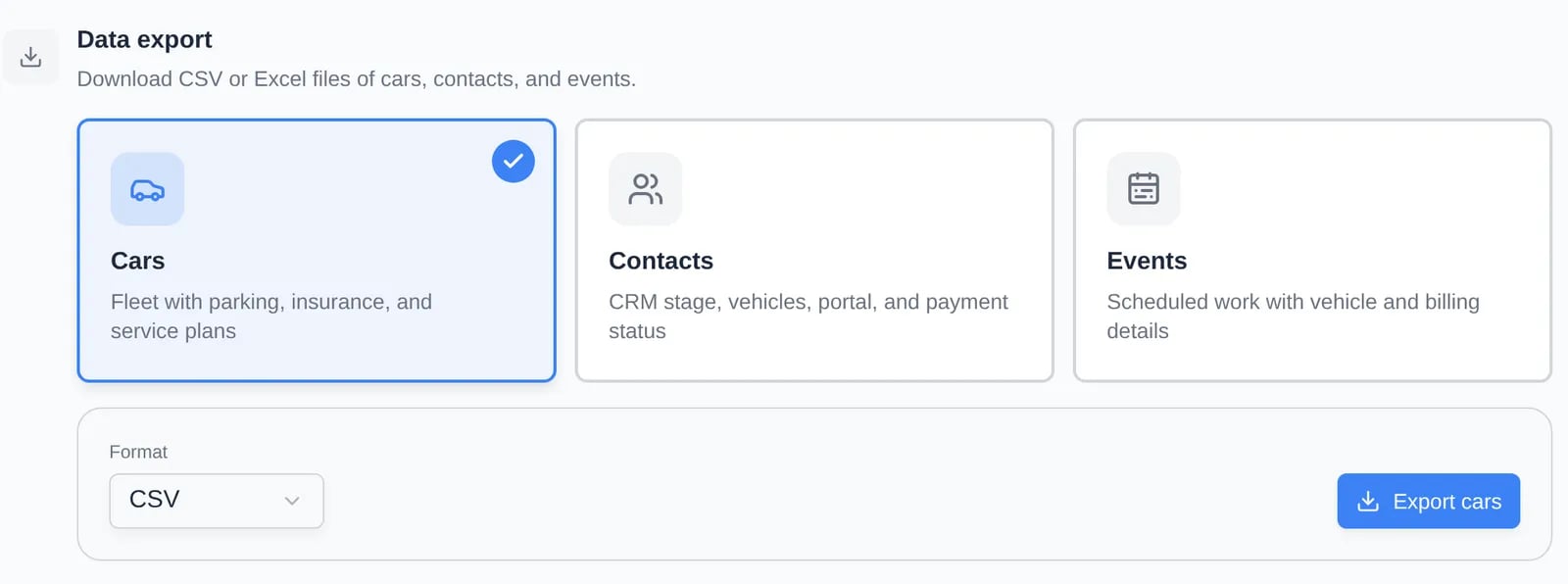
Data export section on the Team settings page with Cars, Contacts, and Events cards, a Format menu set to CSV, and an Export cars button
Go to Settings → Team and scroll to Data export. Pick Cars, Contacts, or Events, choose CSV or Excel under Format, and click Export cars, Export contacts, or Export events. For events, also choose a Date range: Last 30 days, Last 90 days, Last 12 months, or All time. The Team page needs Admin (full access), and a card only appears if you also have the matching permission (Cars, Contacts, or Schedule). The full details are in Export your facility data. Unlike the report pages, this export has fixed columns and ignores any column choices you made on a report. The contacts file has a CRM Stage, Customer Types, and CRM Source. Archived contacts are not included.

Before you open the file

  • Amounts are text. The billing reports and the cars and customer reports write money as formatted strings such as $895.00. Excel will not total them until you convert them to numbers.
  • What you see is what you get. Report exports follow your current sort, filters, and visible columns. Reset Columns first if you want the full set.
  • Dates and times use your facility’s date format and time zone.
  • File names include the date or date range, such as invoices-report-2026-11-01-to-2026-11-20.xlsx.
  • No data shows “No data to export” and nothing downloads.