Payments
Void, credit, or correct a customer invoice
Fix billing mistakes safely—void a wrong invoice, issue a credit note, or edit a finalized bill without confusing the customer.
What you will accomplish
You will know which tool to use when a customer invoice needs to change after it was created—void, issue credit note, or edit invoice—and how to complete each step without creating duplicate charges or leaving the customer with a broken payment link.
Use this guide when:
- The wrong amount, customer, or line items were sent
- The customer paid by cash or check and you need to remove processing fees from the balance
- A customer should not pay an invoice anymore (duplicate bill, canceled service, wrong month)
- Your manager asked you to fix a finalized invoice instead of creating a brand-new bill from scratch
Before you start
- You can open Payments > Invoices and find the invoice on the Customer tab.
- You know what went wrong (wrong amount, wrong customer, duplicate bill, customer already paid another way, and so on).
- Your facility owner or billing manager has approved voiding, crediting, or editing if your team requires manager sign-off.
- If the customer already paid online, note how they paid (card, bank, cash, or check) before you change anything.
Choose the right fix
Not every mistake uses the same button. Pick the option that matches what you need to happen next.
Void invoice — Cancel the invoice completely. The customer can no longer pay it. Use when the whole bill should disappear (duplicate invoice, wrong customer, service canceled before payment).
Issue credit note — Lower the amount still owed on an open invoice without canceling the whole bill. Use when part of the charge should come off (processing fees after cash/check payment, partial goodwill credit, small correction).
Edit invoice — Change line items on a finalized invoice. The system voids the old invoice and creates a new draft with your fixes. Use when descriptions, quantities, or totals need to change and you plan to send a corrected bill.
| Situation | Best choice | Why |
|---|---|---|
| Duplicate invoice sent by mistake | Void invoice | Customer should not see two identical bills |
| Wrong customer on the invoice | Void invoice, then create a new invoice for the right customer | Keeps payment history clean per customer |
| Line items or total need to change | Edit invoice | Builds a corrected draft from the finalized bill |
| Customer paid cash/check and should not pay processing fees | Issue credit note → Processing fees only | Removes the fee line without voiding the whole invoice |
| Small discount or adjustment on an open balance | Issue credit note → Custom amount | Lowers what the customer still owes |
| Customer already paid in full | Ask your manager | You may need a refund process outside this guide |
Open the invoice you need to fix
- Go to Payments > Invoices
Sign in to your dashboard. In the left sidebar, click Payments, then Invoices. You can also open Payments > Invoices directly.
Expected result: You see the Invoices page.
- Click Customer
Click Customer near the top of the page.
Why this matters: The Vendor tab is for bills your facility receives from outside companies. Stay on Customer for customer corrections.
- Find and open the invoice
Search by customer name, email, or invoice number if needed. Click the invoice row.
Expected result: The invoice detail page opens. Near the top you see the customer name, Status badge, amount due, and Actions on the right (for open invoices).
For help reading statuses first, see Review a customer invoice.
Void an invoice
Use Void invoice when the customer should not pay this bill at all.
- Confirm the invoice is Open
Void invoice appears when status is Open. You cannot void a Draft (delete the draft instead) or a Paid invoice (ask your manager about refunds or credits).
Expected result: Status badge shows Open.
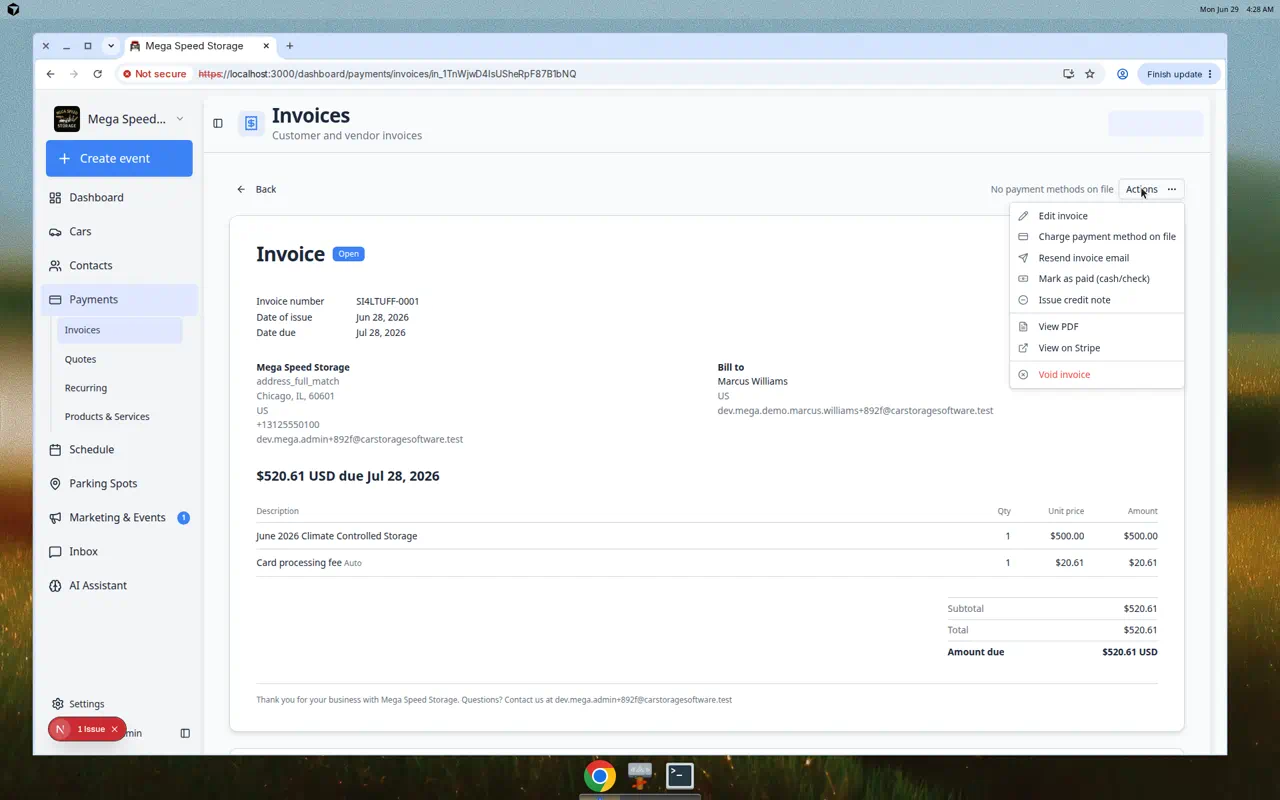
- Open Actions
Click Actions in the top-right area of the invoice detail page.
Expected result: A menu opens with follow-up choices.
- Choose Void invoice
Scroll to the bottom of the menu and click Void invoice (red text).
Why this matters: Voiding tells the system this bill is canceled. The customer's old payment link will stop working.
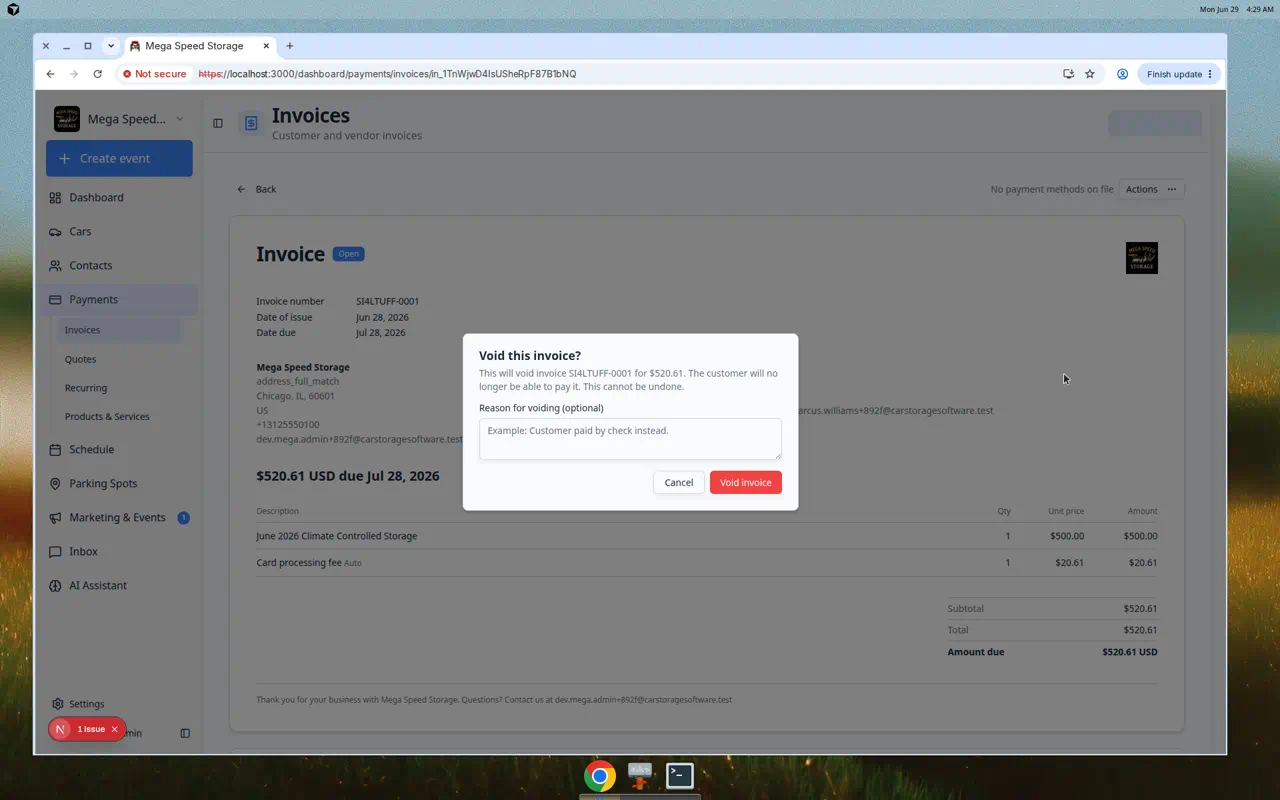
- Read the confirmation window
A window titled Void this invoice? appears. It shows the invoice number and amount. Read the warning: the customer can no longer pay this invoice, and voiding cannot be undone.
Expected result: You see an optional Reason for voiding box.
- Add a reason (recommended)
Type a short note your team will understand later—for example Duplicate of INV-1042 or Customer paid by check on 6/28.
Why this matters: Reasons help managers and bookkeepers understand changes months later.
- Click Void invoice to confirm
Click the red Void invoice button.
Expected result: Status changes to Void. The invoice stays on the list for your records but can no longer be paid.
What success looks like after voiding
- Status shows Void on the invoice detail page and on the Invoices list.
- The customer cannot pay the old link anymore.
- If the customer still owes money, your team creates a new invoice or fixes the recurring plan separately.
Issue a credit note
Use Issue credit note when the invoice should stay open but the amount due should go down.
Common examples: remove processing fees after cash/check payment, apply a small discount, or correct an overcharge without voiding the whole bill.
- Open an Open invoice
From Payments > Invoices (Customer tab), open the invoice with Open status.
- Open Actions and choose Issue credit note
Click Actions, then Issue credit note.
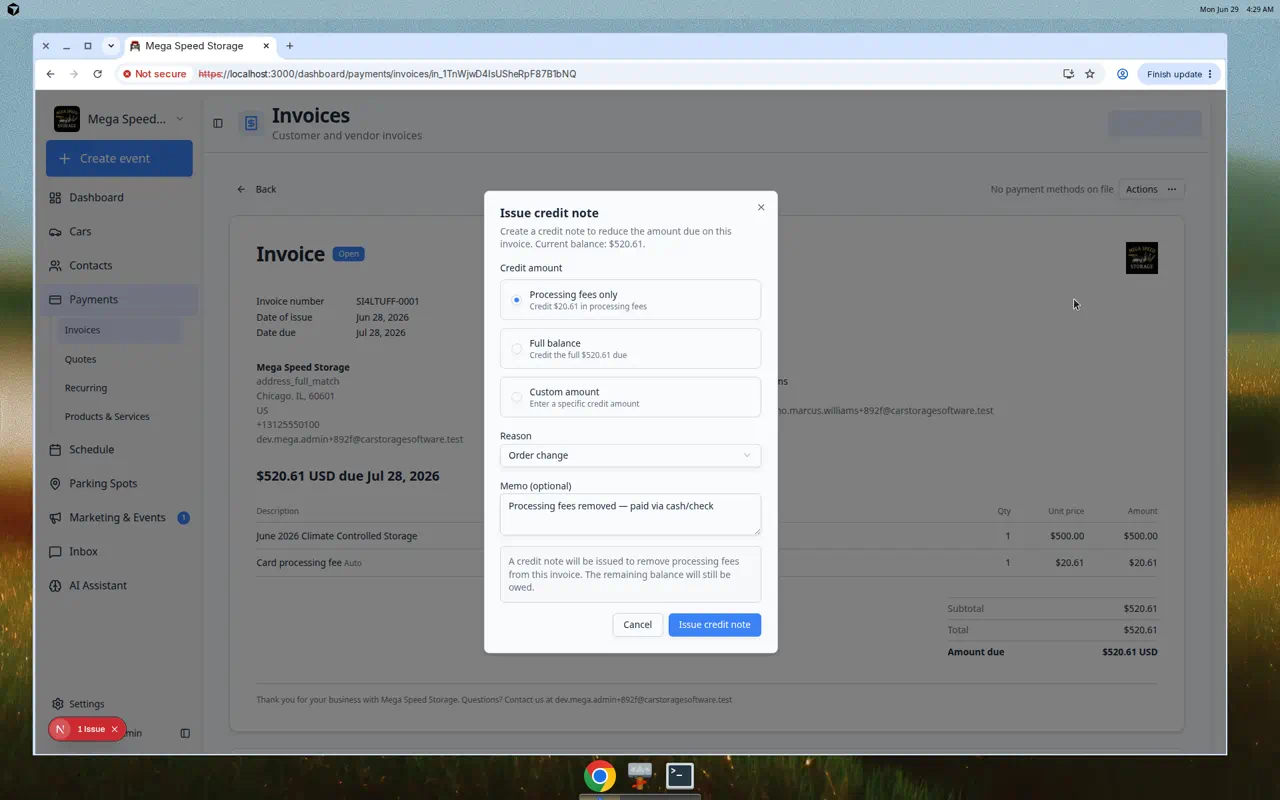
Expected result: A window titled Issue credit note opens. It shows the current balance.
- Choose the credit amount
Pick one option:
- Processing fees only — Appears when the invoice includes card or bank processing fees. Use when the customer paid cash or check and should not pay those fees.
- Full balance — Credits everything still owed. The invoice may close if the credit covers the full balance.
- Custom amount — Type a specific dollar amount (for example a $50 goodwill credit).
Why this matters: Each option changes the balance differently. Full balance is stronger than a small custom credit.
- Choose a reason
Select a reason from the list (for example Order change or Duplicate). Add a short memo if your team uses the memo field.
Expected result: The reason helps your bookkeeper understand the adjustment.
- Save the credit note
Click the button to issue the credit (for example Issue credit note).
Expected result: A success message appears. The amount due drops by the credit amount. A Credit notes section may appear on the invoice detail page.
What success looks like after a credit note
- Amount due on the invoice detail page is lower than before.
- A credit note row appears in the Credit notes section when your facility uses that view.
- If the customer still owes money, resend the invoice from Actions so they see the updated balance. See Send and collect customer payments.
Edit a finalized invoice (void and recreate)
Use Edit invoice when line items, quantities, or descriptions need to change and you want a new draft built from the current bill.
Important: Editing does not silently change the open invoice. The system voids the current invoice and creates a new draft you must review and finalize again.
- Open an Open invoice
Open the finalized invoice from Payments > Invoices.
- Open Actions and choose Edit invoice
Click Actions, then Edit invoice.
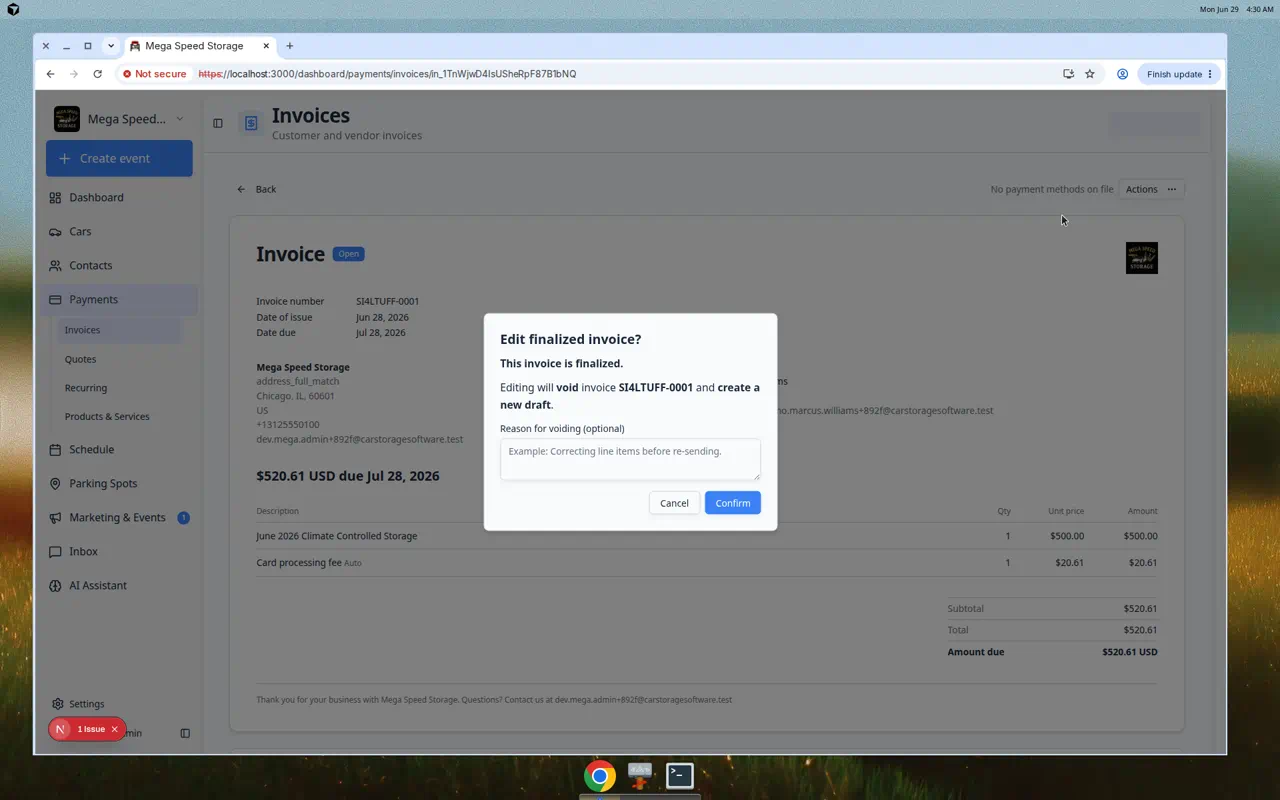
Expected result: A window titled Edit finalized invoice? appears.
- Read the warning
The window explains that editing will void the current invoice and create a new draft. This protects customers from paying an old total after you change line items.
Why this matters: The customer's old payment link stops working after you confirm. You must finalize the new draft before they can pay the corrected amount.
- Add an optional void reason
Type why you are editing—for example Corrected storage month on line item.
- Click Confirm
Click Confirm.
Expected result: You land on a new Draft invoice with the same line items as a starting point. Status on the old invoice changes to Void.
- Fix the draft and finalize again
Update line items, totals, and due date. When everything is correct, click Finalize invoice and follow the same steps as Create an invoice.
Expected result: A new Open invoice replaces the voided one. Resend the email so the customer gets the corrected bill.
Record a partial payment (related)
Sometimes the customer pays part of an open invoice—not a void or credit, but worth knowing when you are fixing balances.
- Open the open invoice
Go to Payments > Invoices and open the Open invoice.
- Choose Mark as paid (cash/check)
Click Actions, then Mark as paid (cash/check).
- Enter less than the full total
In the payment amount field, type the amount you actually received. Leave blank only when you received the full balance.
Expected result: Status may stay Open with a lower Amount due, or show Paid when the remainder is zero.
Full steps: Send and collect customer payments.
Common mistakes to avoid
- Do not void an invoice the customer already paid without manager approval—you may need a refund or credit note instead.
- Do not use Issue credit note when the whole bill is wrong—Edit invoice or Void invoice plus a new invoice is usually clearer.
- Do not forget to resend the invoice after a credit note or edit—the customer may still have an old amount in email.
- Do not create a second brand-new invoice for the same charge without voiding the first one—customers may pay twice.
Troubleshooting
What to do next
- Need to send or collect on the corrected invoice → Send and collect customer payments
- Need to understand statuses before you change anything → Review a customer invoice
- Monthly charges should change going forward → Manage recurring billing (pausing or canceling is separate from voiding one invoice)